Arma 3 Server
Customize your image
-
Create a custom
entrypoint.sh, to start the arma 3 server automaticly:#!/bin/bash # start arma 3 server if already installed if [[ -e /home/linuxgsm/arma3server && -e /home/linuxgsm/serverfiles ]]; then ~/arma3server start else # start the installation process cp /linuxgsm.sh ~/linuxgsm.sh echo 4 | ~/linuxgsm.sh install ~/arma3server install fi /usr/bin/tmux set -g status off && /usr/bin/tmux attach 2> /dev/null tail -f /dev/null exit 0 -
Create a custom
Dockerfile, which extends the lgsm image:FROM gameservermanagers/linuxgsm-docker USER root # install libtbb2:i386 for arma 3 extdb3 RUN dpkg --add-architecture i386 \ && apt-get update -y \ && apt-get upgrade -y \ && apt-get install -y libtbb2:i386 \ && rm -rf /var/lib/apt/lists/* # add custom entrypoint COPY entrypoint.sh /entrypoint.sh RUN chmod +x /entrypoint.sh USER linuxgsm -
Build your customized lgsm image:
sudo docker build -t arma3server .
Start the arma3 server
-
Create your service definition in the
docker-compose.ymlof you games stack:arma3: image: arma3server restart: always ports: - '2302:2302/udp' # Arma 3 + voice over network - '2303:2303/udp' # Steam Query - '2304:2304/udp' # Steam Master - '2305:2305/udp' # old Voice over Network - '2306:2306/udp' # BattleEye volumes: - '/srv/games/arma3:/home/lgsm' -
Start the service and execute a shell:
sudo docker-compose up -d arma3 sudo docker-compose exec arma3 bash -
Add your steam account credentials to download the files of the gameserver.
I suggest you create a new account for this:cat <<EOF >> ~/lgsm/config-lgsm/arma3server/arma3server.cfg steamuser="YOUR_USERNMAE" steampass='YOUR_PASSWORD' EOF -
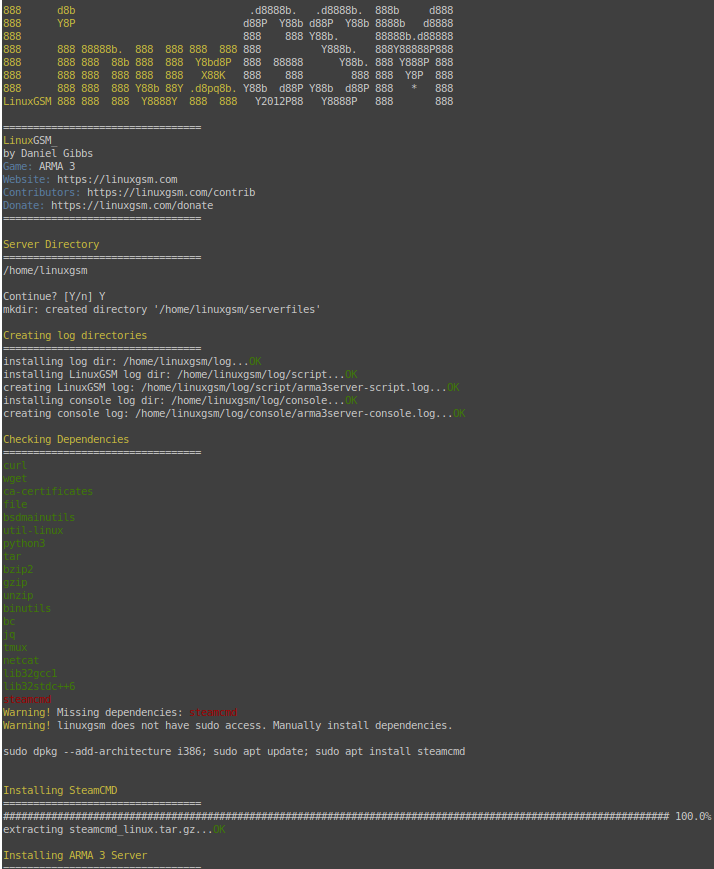
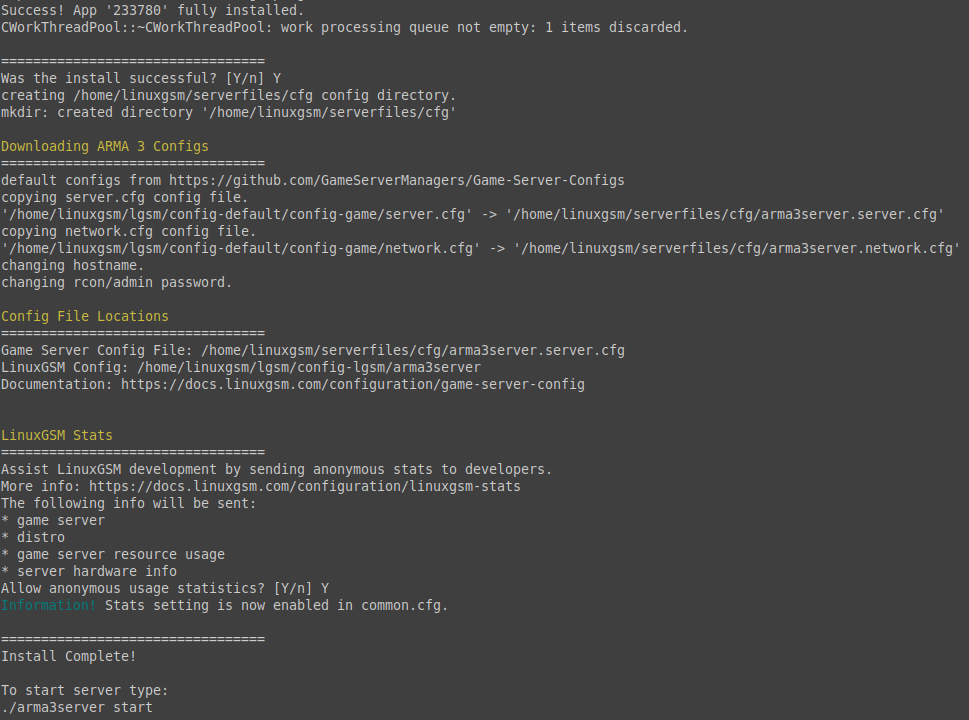
Afterwards you can start the installation process:
./arma3server install
Importent configuration files
# things that need to be done to start the server (e. g. mods)
/srv/games/arma3/lgsm/config-lgsm/arma3server/arma3server.cfg

# arma 3 server / network config
/srv/games/arma3/serverfiles/cfg/arma3server.server.cfg
/srv/games/arma3/serverfiles/cfg/arma3server.network.cfg
Last update:
2022-01-09